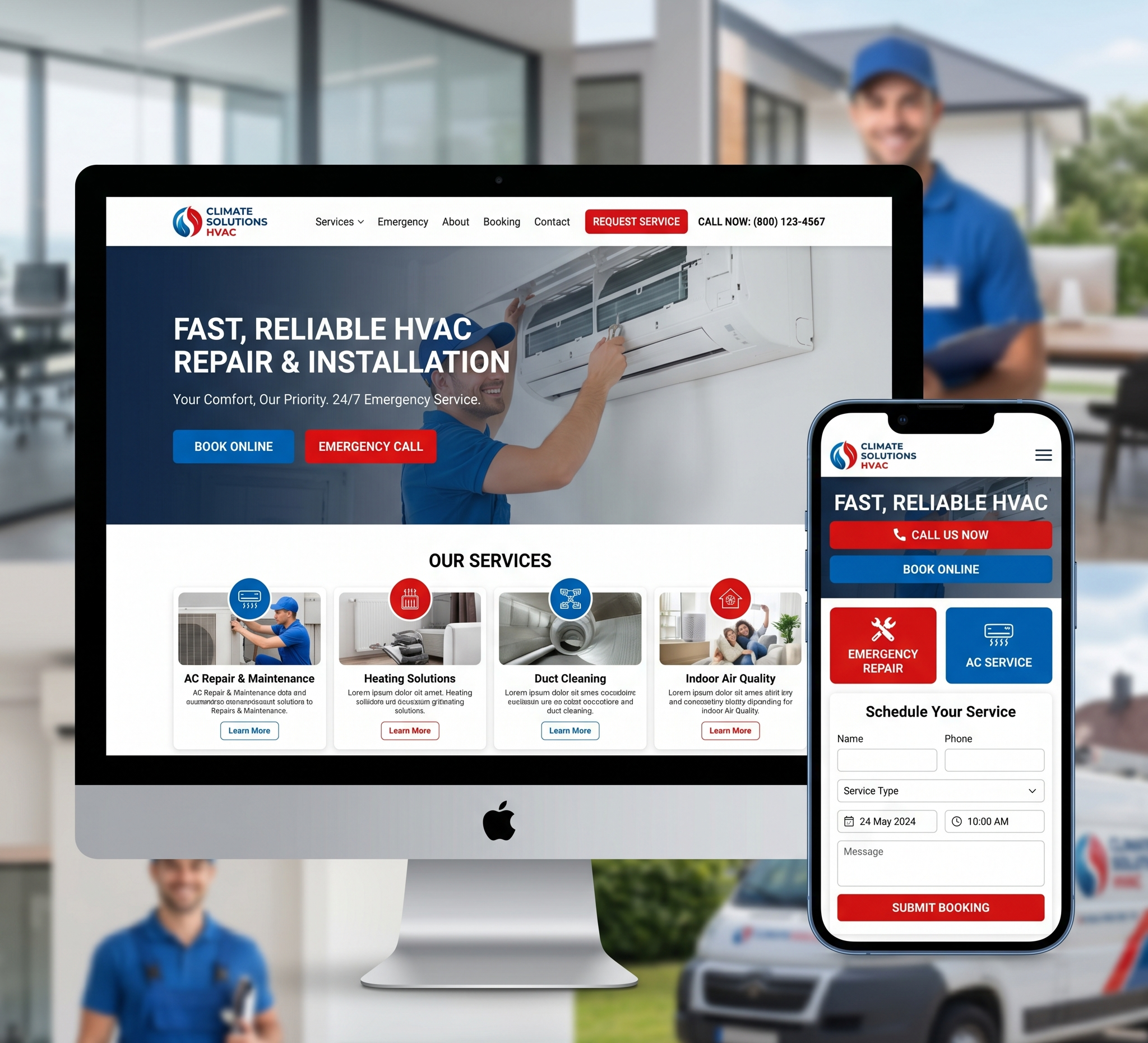

Website Design in Illustrator – In the digital age, having a captivating online presence is essential for businesses and individuals alike. Your website is often the first point of contact between you and your audience, making its design a critical aspect of your online success. Adobe Illustrator is a powerful tool that can help you create stunning website designs. In this comprehensive guide, we’ll delve into the world of website design using Illustrator, providing you with detailed insights and tips to create visually appealing, user-friendly websites.
Mastering Website Design in Illustrator: A Comprehensive Guide
Table of Contents: Website Design in Illustrator
1. Understanding the Basics of Website Design in Illustrator
- 1.1. What is Website Design?
- 1.2. Why Use Adobe Illustrator for Website Design?
- 1.3. Essential Design Principles for Web Design
- 1.4. The Responsive Design Concept
2. Setting Up Adobe Illustrator for Web Design
- 2.1. Choosing the Right Document Settings
- 2.2. Configuring Grids and Guides
- 2.3. Organizing Layers and Artboards
3. Web Design Assets and Resources
- 3.1. Selecting Fonts
- 3.2. Color Schemes and Palettes
- 3.3. Icons and Images
- 3.4. Finding Web Design Inspiration
4. Wireframing and Planning Your Website
- 4.1. The Importance of Wireframes
- 4.2. Creating Wireframes in Illustrator
- 4.3. Designing the User Interface (UI)
- 4.4. Prototyping Interactions
5. Designing the Homepage
- 5.1. Defining the Purpose of the Homepage
- 5.2. Header Design
- 5.3. Hero Section
- 5.4. Content Blocks and Sections
- 5.5. Footer Design
6. Creating Inner Pages
- 6.1. Consistency in Design
- 6.2. Navigation Menus
- 6.3. Content Layouts
- 6.4. Sidebars and Widgets
7. Responsive Web Design
- 7.1. Understanding Responsive Design
- 7.2. Illustrator Tools for Responsive Design
- 7.3. Adapting to Different Screen Sizes
- 7.4. Mobile-First Design Approach
8. Exporting Assets and Preparing for Development
- 8.1. Exporting Images and Graphics
- 8.2. Generating CSS from Illustrator
- 8.3. Handing Off Designs to Developers
9. Testing and Feedback
- 9.1. The Importance of Testing
- 9.2. User Experience (UX) Testing
- 9.3. Gathering Feedback
10. Conclusion: Bringing Your Illustrator Designs to Life
1. Understanding the Basics of Website Design
1.1 What is Website Design?
Website design is the art and science of creating a visually appealing, user-friendly, and functional interface for a website. It involves the arrangement of elements such as text, images, buttons, and other interactive features to provide a seamless and enjoyable user experience. Effective web design not only attracts visitors but also guides them through the content and encourages them to take desired actions.
1.2 Why Use Adobe Illustrator for Website Design?
Adobe Illustrator is a vector graphics editor known for its precision and flexibility. While it’s often associated with graphic design and illustration, it can also be a powerful tool for web design. Here are some reasons to use Illustrator for website design:
- Vector Graphics: Illustrator creates scalable vector graphics, which are perfect for web design. These graphics retain their quality and sharpness at any size, making them ideal for responsive design.
- Precise Layouts: The grid system and alignment tools in Illustrator allow for precise layout and positioning of elements, ensuring that your website design is pixel-perfect.
- Seamless Integration: Illustrator is part of the Adobe Creative Cloud suite, which includes other tools like Photoshop and Adobe XD. This integration makes it easy to transfer assets between different software for a streamlined design process.
- Typography Control: Illustrator provides extensive control over typography, allowing you to experiment with fonts and text formatting.
- Versatility: You can create a wide range of design elements, from logos and icons to full web layouts, all within the same software.
1.3 Essential Design Principles for Web Design
Before diving into Adobe Illustrator, it’s crucial to understand the fundamental principles of web design. These principles will guide you in creating designs that are not only visually appealing but also functional and user-friendly:
- Hierarchy: Arrange content so that important elements are more prominent. Use size, color, and placement to establish a visual hierarchy that guides the user’s attention.
- Balance: Achieve visual equilibrium in your design by distributing elements evenly. Balance can be symmetrical or asymmetrical, depending on your design goals.
- Consistency: Maintain a consistent design throughout the website. Use a cohesive color scheme, typography, and layout to create a sense of unity.
- Whitespace: White space (or negative space) is the empty area around design elements. It improves readability, emphasizes important content, and adds elegance to your design.
- Usability: Ensure that your design is user-friendly. Navigation should be intuitive, and the layout should adapt to different devices and screen sizes.
- Color Theory: Understand the psychology of colors and use them to evoke specific emotions or convey brand identity.
1.4 The Responsive Design Concept
In today’s multi-device world, responsive design is a critical consideration in web design. Responsive design means that your website adapts and looks good on various screen sizes, from large desktop monitors to small smartphones. Here are some key aspects of responsive design:
- Fluid Grids: Instead of fixed pixel-based grids, use relative units like percentages to create fluid layouts that adjust to different screen sizes.
- Media Queries: Implement media queries in your CSS to specify how the design should change based on the screen width. For example, you might hide certain elements on small screens or adjust font sizes.
- Mobile-First Approach: Start designing for mobile screens first and then progressively enhance the design for larger screens. This ensures that the most critical content is accessible on smaller devices.
- Flexible Images: Use CSS to ensure that images scale proportionally on various devices. This prevents images from being too large or too small on different screens.
2. Setting Up Adobe Illustrator for Web Design
2.1 Choosing the Right Document Settings
Before you begin designing your website in Adobe Illustrator, it’s crucial to set up your document correctly. The document settings determine the canvas size, color mode, and other essential aspects of your design. Follow these steps to configure your document:
- Create a New Document: Open Illustrator and go to “File” > “New.” You will see the New Document dialog.
- Choose Web Profile: In the New Document dialog, select the “Web” profile from the “Profile” drop-down menu. This profile provides preset options suitable for web design.
- Specify Artboard Size: In the “Artboard” section, you can either select a preset size or enter custom dimensions. Common web design artboard sizes include 1920×1080 pixels for full-width desktop designs and 375×667 pixels for mobile designs.
- Select RGB Color Mode: Ensure that the “Color Mode” is set to RGB (Red, Green, Blue) rather than CMYK (Cyan, Magenta, Yellow, Black). RGB is the standard color mode for web design.
- Set Resolution: For web design, a resolution of 72 pixels per inch (PPI) is sufficient. Higher resolutions are typically used for print.
- Orientation: Choose between landscape and portrait orientation, depending on your design’s requirements.
Once you’ve configured these settings, click “Create” to create your new document. You now have a canvas tailored for web design.
2.2 Configuring Grids and Guides
Grids and guides are essential tools for maintaining precision in your web design. Here’s how to set them up in Illustrator:
- Grids: Go to “View” > “Show Grid” to enable the grid. You can configure grid settings by going to “Edit” > “Preferences” > “Guides & Grid.” Adjust the gridline spacing and subdivisions to match your design needs.
- Guides: You can drag guides from the ruler and place them on your artboard. Guides help you align and position elements accurately. To clear guides, go to “View” > “Clear Guides.”
2.3 Organizing Layers and Artboards
Effective layer and artboard management is essential for keeping your design organized. Here are some tips:
- Use Layers: Create different layers for various design elements. For example, you might have separate layers for the header, navigation, content, and footer. To create a new layer, go to “Window” > “Layers” and click the “New Layer” button.
- Name Layers and Objects: Assign meaningful names to layers and objects. This makes it easier to identify and work with specific elements, especially in complex designs.
- Artboards: If your website design includes multiple pages, use different artboards for each page. You can create a new artboard by going to “Object” > “Artboards” > “New Artboard.”
- Artboard Naming: Name your artboards according to the content they represent, such as “Homepage,” “About Us,” or “Contact.”
Properly organizing your layers and artboards will save you time and frustration as your design becomes more intricate.
3, Web Design Assets and Resources
3.1 Selecting Fonts
Typography plays a significant role in web design. The choice of fonts can impact the website’s readability and overall aesthetics. Here’s how to select fonts for your web design:
- Web-Safe Fonts: Use web-safe fonts to ensure that your text displays consistently on all devices and browsers. Common web-safe fonts include Arial, Helvetica, Times New Roman, and Georgia.
- Google Fonts: For more design options, consider using Google Fonts. Google Fonts offers a vast collection of web fonts that you can easily integrate into your website. To use Google Fonts in your Illustrator design, download the font files from the Google Fonts website and install them on your computer.
- Font Pairing: Choose complementary fonts for headings and body text. A common practice is to pair a decorative or bold font for headings with a clean and readable font for body text.
- Font Size and Line Spacing: Maintain legibility by using an appropriate font size and line spacing. Larger font sizes are often used for headings, while smaller sizes are suitable for body text. Adequate line spacing (line height) improves readability.
3.2 Color Schemes and Palettes
Color is a crucial element in web design, influencing the mood and perception of your website. To create a consistent and visually appealing color scheme, follow these steps:
- Brand Colors: If you’re designing a website for a business or brand, use the brand’s colors as a foundation. This ensures brand consistency.
- Color Theory: Familiarize yourself with color theory to understand the emotions and associations linked to different colors. For example, blue is often associated with trust and professionalism, while red can evoke excitement and urgency.
- Color Palettes: Create a color palette for your website. A typical palette consists of a primary color (for brand identity), secondary colors (for accents and buttons), and neutral colors (for backgrounds and text).
- Contrast: Ensure there is enough contrast between text and background colors for readability. Use tools like the Web Content Accessibility Guidelines (WCAG) to check color contrast.
- Color Picker Tools: Adobe Illustrator includes a color picker tool that allows you to select and save colors in your design. You can also use online color palette generators to find complementary color combinations.
3.3 Icons and Images
Images and icons enhance the visual appeal of your website. Here’s how to source and use these assets in your Illustrator design:
- Stock Images: For high-quality and relevant images, consider using stock photo websites like Shutterstock, Adobe Stock, or Unsplash. Download and use images that match your content and design.
- Illustrator’s Image Tracing: Illustrator’s Image Trace feature allows you to convert raster images into vector graphics. This can be useful for custom illustrations and icons.
- SVG Icons: Scalable Vector Graphics (SVG) icons are ideal for web design as they can be scaled without loss of quality. You can create or download SVG icons and import them into your design.
- Optimize Images: Compress and optimize images to reduce file sizes without compromising quality. This is crucial for faster website loading times.
3.4 Finding Web Design Inspiration
Web design is a creative process, and finding inspiration is key to producing fresh and appealing designs. Here are some ways to discover inspiration for your web design projects:
- Browse Websites: Explore websites in your industry or those with similar design goals. Take note of design elements, color schemes, and layouts that catch your eye.
- Design Galleries: Visit design galleries like Awwwards, Behance, and Dribbble to view outstanding web design projects from around the world.
- Mood Boards: Create mood boards using tools like Pinterest or Adobe Spark to gather images, colors, and design elements that inspire you.
- Design Books: Invest in web design books and publications to gain insights and ideas from experienced designers.
- User Interface (UI) Kits: UI kits provide pre-designed elements and templates that you can customize for your projects. Websites like UI8 and InVision offer a range of UI kits.
By continuously seeking inspiration, you’ll stay up-to-date with design trends and find creative solutions for your web design projects.
4. Wireframing and Planning Your Website
4.1 The Importance of Wireframes
Before you start designing your website in detail, it’s wise to create wireframes. Wireframes are simplified, low-fidelity representations of your website’s layout and structure. They help you plan the placement of content, navigation, and interactive elements. Creating wireframes in Illustrator is a straightforward process:
- New Artboard: Create a new artboard for your wireframe. Name it “Wireframe” or something similar to distinguish it from the final design artboards.
- Basic Shapes: Use basic shapes, such as rectangles and squares, to outline the placement of elements. These shapes represent where content blocks, images, and buttons will be located.
- Text Boxes: Add text boxes to indicate headings, subheadings, and body text. You don’t need to specify the actual text at this stage.
- Arrows and Lines: Use arrows and lines to demonstrate the flow of navigation and user interactions. This can include menu links, buttons, and user journey paths.
- No Styling: Avoid adding colors, images, or complex design elements in wireframes. The focus should be on structure and layout.
4.2 Creating Wireframes in Illustrator
Here’s how to create wireframes in Adobe Illustrator:
- Layout Planning: Determine the layout of your web pages. Consider the header, navigation menu, content sections, and footer.
- Grid and Guides: Make use of grids and guides to maintain alignment and spacing consistency.
- Header: Design the header area, including the website logo, navigation menu, and any contact or call-to-action buttons.
- Navigation: Outline the navigation menu, including dropdown menus if necessary. Use placeholders like “Home,” “About Us,” “Services,” and “Contact.”
- Content Blocks: Create rectangles for content blocks. These can represent sections like “Features,” “Testimonials,” “Blog,” or any other content you plan to include.
- Text Placement: Add text boxes within content blocks to represent headings and text content. You can use placeholder text like “Lorem Ipsum.”
- Images: If your design includes images or illustrations, use placeholder rectangles to denote where they’ll be placed.
- Buttons: For interactive elements like buttons and forms, create boxes with labels like “Submit” or “Learn More.”
- Links and Interactions: Draw arrows or lines to indicate clickable links, hover effects, or dropdown menus.
- Annotations: Consider adding annotations or notes to explain specific design decisions or interactions.
Remember that wireframes are a visual guide for your design process. They help you map out the layout and ensure that the structure of your website is well thought out before moving on to the finer details.
4.3 Designing the User Interface (UI)
With your wireframes in place, you can now start designing the user interface (UI) of your website. The UI design phase involves adding visual elements, colors, and styling to your wireframe. Here are the steps to create the UI in Adobe Illustrator:
- Use Wireframes as a Guide: Keep your wireframes visible as you design the UI. They serve as a roadmap for your design, ensuring that you don’t deviate from the planned layout.
- Style Elements: Start styling individual elements, such as headers, buttons, and content sections. Use the Appearance panel in Illustrator to apply colors, strokes, and effects.
- Typography: Choose the fonts you’ve selected for your design and apply them to text elements. Pay attention to font size, weight, and spacing.
- Color Scheme: Implement your chosen color scheme for the website. Apply colors to backgrounds, text, buttons, and other design elements.
- Images and Icons: Replace placeholder rectangles and shapes with actual images and icons. Ensure that they fit the design and don’t distort or pixelate.
- Buttons and Forms: Design interactive elements like buttons and forms to make them visually appealing and in line with your overall design.
- Testing Interactions: As you add visual elements, test any interactions or animations you plan to include. Ensure that they work smoothly and enhance the user experience.
- Exporting UI Elements: You can export individual UI elements or groups in Illustrator as PNG, SVG, or other formats for use in web development.
4.4 Prototyping Interactions
Interactive prototypes allow you to test the usability and functionality of your website before it’s built. While Adobe Illustrator is primarily a design tool, you can create basic prototypes to demonstrate interactions. Here’s how:
- Artboards: Use artboards to represent different states or screens of your website. For example, you might have artboards for the homepage, contact page, and product page.
- Interactive Elements: Add interactive elements like buttons, links, and dropdown menus. Use the “Object” > “Actions” menu to define interactions such as “On Click” or “On Hover” actions.
- Transitions: Specify transitions between artboards to simulate user flow. You can use features like “Fade In” or “Slide” to create simple animations.
- Hotspots: Hotspots are invisible areas that trigger interactions. Create hotspots over buttons or navigation links to simulate how users would navigate through your website.
- Presentation Mode: Use the “Presentation Mode” in Illustrator to view your prototypes as an interactive slideshow. This can help you visualize the user experience.
While Adobe Illustrator is not a dedicated prototyping tool like Adobe XD or Figma, it can serve as a starting point for demonstrating basic interactions and flows.
5. Designing the Homepage
The homepage of your website is like a digital storefront. It’s often the first page visitors see, so its design is crucial. Here’s how to design a captivating homepage using Adobe Illustrator:
5.1 Defining the Purpose of the Homepage
Before you start designing, consider the primary goals of your homepage. What do you want visitors to do or learn when they land on your site? Common homepage goals include:
- Introducing your brand or business.
- Navigating to other key pages.
- Showcasing featured products or services.
- Collecting email sign-ups.
- Providing quick access to contact information.
5.2 Header Design
The header is a critical part of the homepage as it’s the first thing visitors see. Here’s how to design an effective header:
- Logo: Ensure your logo is prominent and links back to the homepage. Use high-quality logo files to maintain crispness.
- Navigation Menu: Create a clear and easy-to-navigate menu. Include the most important sections of your website and consider using dropdown menus for subcategories.
- Search Bar: If applicable, add a search bar to help users find specific content.
- Call to Action (CTA): Place a CTA button or link in the header to direct visitors toward a specific action, such as signing up or exploring your products.
- Contact Information: Include contact information like a phone number or email address for easy access.
5.3 Hero Section
The hero section is the topmost part of the homepage and is often the most visually striking. Here’s how to design an engaging hero section:
- Background Image or Video: Use a captivating image or video that represents your brand or conveys your message. Ensure the media doesn’t overwhelm the text.
- Headline and Subheadline: Include a concise and attention-grabbing headline and a subheadline that provides additional context.
- CTA Button: Add a primary CTA button that encourages users to take action, such as “Learn More” or “Shop Now.”
- Scroll Indicator: If your hero section contains multiple content blocks, consider adding a scroll indicator (an arrow or message) to guide users to scroll down.
- Social Proof: Include elements like testimonials or awards to build trust and credibility.
5.4 Content Blocks and Sections
The content blocks on your homepage should engage and inform visitors. Here are some tips for designing effective content blocks:
- Visual Consistency: Maintain a consistent visual style throughout the content blocks, including typography, colors, and spacing.
- Imagery: Use high-quality images and graphics to support your content. Ensure images are relevant to the content and visually appealing.
- Icons: Icons can enhance the visual appeal of your content blocks and help users quickly understand the content.
- Text Placement: Carefully arrange text and headings within content blocks. Make sure the text is readable and well-spaced.
- Spacing and Alignment: Pay attention to the spacing and alignment of elements within the content blocks. Avoid clutter and ensure a balanced layout.
- CTAs: Include clear and persuasive CTAs in each content block to guide users toward the desired actions.
5.5 Footer Design
The footer is the bottom section of your homepage and typically contains important information and links. Here’s how to design an effective footer:
- Copyright Information: Include copyright information with the current year to show that your website is up-to-date.
- Navigation Links: Place navigation links in the footer to help users find essential pages, such as the privacy policy, terms of service, and sitemap.
- Contact Information: Reiterate contact information, such as an email address or phone number, in the footer.
- Social Media Links: Add social media icons that link to your brand’s profiles on platforms like Facebook, Twitter, and Instagram.
- Newsletter Signup: If you have a newsletter or mailing list, provide a form for visitors to subscribe.
- Back to Top Button: Include a “Back to Top” button or arrow that allows users to return to the top of the page with a single click.
6. Creating Inner Pages
While the homepage is crucial, inner pages also play a vital role in delivering content and guiding users. Here’s how to design effective inner pages using Adobe Illustrator:
6.1 Consistency in Design
Consistency in design is essential for maintaining a professional and cohesive look throughout your website. Follow these guidelines for design consistency:
- Header and Footer: Ensure that the header and footer elements, including navigation menus and contact information, remain consistent on all pages.
- Color Scheme: Stick to the same color scheme established during the design phase. Consistent colors help users identify with your brand.
- Typography: Use the same fonts and typography styles across all pages to maintain readability and visual consistency.
- Layout Elements: Keep the layout elements, such as content block structures and spacing, consistent to create a familiar user experience.
6.2 Navigation Menus
Navigation menus on inner pages should provide clear and logical paths for users to explore your website. Here’s how to design effective navigation menus:
- Breadcrumbs: Consider adding breadcrumbs at the top of the page to show users their location within the website hierarchy.
- Dropdown Menus: If you have subcategories, implement dropdown menus in the navigation to make it easier for users to find specific content.
- Highlight Active Page: When a user is on a specific page, highlight that page in the navigation menu to indicate the user’s location.
- Search Bar: Include a search bar on inner pages to help users find specific content quickly.
6.3 Content Layouts
Each inner page may have a unique content layout based on its purpose. Follow these guidelines for effective content layouts:
- Balance Text and Images: Balance the use of text and images to make the content visually engaging and easy to read.
- Headings and Subheadings: Use clear headings and subheadings to break up content and provide visual hierarchy.
- Consistent Spacing: Maintain consistent spacing between elements and maintain alignment for a clean and professional look.
- Lists and Bullet Points: When presenting lists or important information, consider using bullet points or numbered lists for clarity.
6.4 Sidebars and Widgets
Inner pages often include sidebars and widgets to enhance user experience. Here’s how to design effective sidebars:
- Content Widgets: Include content widgets like “Related Posts” or “Popular Articles” to encourage users to explore more content.
- Social Media Feeds: If you have an active social media presence, consider including social media feeds in the sidebar.
- Newsletter Signup: Encourage users to subscribe to your newsletter with a prominent signup form.
- Call to Action (CTA): Use the sidebar for secondary CTAs, such as “Contact Us” or “Request a Quote.”
- Recent Comments or Activity: Display recent comments or user activity to show that your website is engaging and active.
7. Responsive Web Design
In today’s digital landscape, responsive web design is non-negotiable. It’s crucial that your website looks and functions well on all devices and screen sizes. Here’s how to approach responsive design in Adobe Illustrator:
7.1 Understanding Responsive Design
Responsive web design is an approach that ensures your website adapts to different devices and screen sizes, providing an optimal user experience. This means that your website should look and function well on desktops, laptops, tablets, and smartphones.
The key principles of responsive design include:
- Fluid Layouts: Use relative units (like percentages) for layout elements rather than fixed pixel dimensions.
- Media Queries: Apply CSS media queries to specify how your design should adapt based on the screen width.
- Mobile-First Approach: Start by designing for mobile screens and then enhance the design for larger screens. This ensures a user-centric approach.
- Image Optimization: Optimize images for various screen resolutions and sizes to minimize loading times.
- Flexible Typography: Use responsive typography techniques to ensure text is readable on all devices.
7.2 Illustrator Tools for Responsive Design
While Illustrator is primarily a design tool, you can use it to create responsive design mockups. Here’s how:
- Artboards: Create multiple artboards to represent different screen sizes and orientations (e.g., desktop, tablet, mobile portrait, mobile landscape).
- Groups and Layers: Organize your design into groups and layers for easy adaptation. For example, group all elements in the header, navigation, or content section.
- Symbol Libraries: Illustrator allows you to create symbol libraries where you can save reusable design elements. This is useful for maintaining consistency across different screen sizes.
- Pathfinder and Shape Tools: Use pathfinder and shape tools to create flexible design elements that adapt to various screen sizes.
- Resize Artboards: When designing, you can use the “Artboard Tool” to resize artboards to different dimensions, simulating different screen sizes.
7.3 Adapting to Different Screen Sizes
Here’s how you can adapt your design to different screen sizes within Adobe Illustrator:
- Mobile-First Design: Start by designing for the smallest screen size (e.g., mobile portrait). Ensure that the layout and elements fit well on this screen.
- Media Queries: Use media queries in your CSS to define styles for different screen widths. Adobe Illustrator doesn’t generate CSS directly, but you can manually apply the CSS in your development phase.
- Grid and Alignment: Adjust the grid, alignment, and spacing of elements to ensure they adapt gracefully to different screen sizes.
- Responsive Typography: Create styles for typography that adapt to different screen sizes. For example, use larger fonts for desktop and smaller fonts for mobile.
- Image Variations: Create different image variations for various screen resolutions. For example, use higher-resolution images for desktop screens and lower-resolution versions for mobile.
7.4 Mobile-First Design Approach
The mobile-first design approach involves designing for mobile devices before scaling up to larger screens. Here’s how to implement a mobile-first approach using Adobe Illustrator:
- Start with a Mobile Artboard: Begin your design process with a mobile artboard, such as a mobile portrait (e.g., 375×667 pixels).
- Simple and Focused: Keep the design clean and focused on essential content and functionality. Mobile users often have limited screen space and shorter attention spans.
- Progressive Enhancement: As you scale up to larger screen sizes (e.g., tablet and desktop), add additional content and design elements. This is known as progressive enhancement.
- Adaptive Images: Create image assets for mobile that load quickly, and then provide higher-resolution images for larger screens. Use media queries to specify image sources in your CSS.
- Testing on Real Devices: Test your mobile design on actual mobile devices to ensure it works well in a real-world context.
Remember that the mobile-first approach is not limited to design but also involves considerations in development. The goal is to ensure a seamless user experience for mobile users while enhancing the design for larger screens.
8. Exporting Assets and Preparing for Development
Once you’ve completed your website design in Adobe Illustrator, it’s time to prepare the assets for web development. This involves exporting design elements and providing developers with the necessary resources. Here’s how to export assets:
8.1 Exporting Images and Graphics
- Select Elements: Use the Selection tool to choose the specific elements you want to export. You can select individual objects, groups, or entire artboards.
- File > Export > Export As: Navigate to “File” > “Export” > “Export As.” Here, you can choose the format (e.g., PNG, SVG) and specify the destination folder for your exported assets.
- Asset Optimization: If necessary, you can optimize images for web use using image optimization tools or online services.
- SVG Export: For vector graphics and icons, consider exporting them as SVG (Scalable Vector Graphics) to maintain quality and scalability.
8.2 Generating CSS from Illustrator
While Adobe Illustrator is not a dedicated web design tool, you can extract CSS styles manually from your design. This can be particularly useful for developers who need to translate your design into code. Here’s how:
- Manual CSS Extraction: For each element, note the color codes, font styles, font sizes, and positioning. Provide these details to your development team.
- Organized Documentation: Create a well-organized design documentation that includes a style guide with color codes, typography details, and spacing measurements.
- Exporting Assets: Export individual design assets, such as buttons, icons, and background images, for developers to integrate into the website.
- Collaboration: Work closely with your development team to ensure a smooth transition from design to development. Regular communication is key to address any questions or issues.
8.3 Handing Off Designs to Developers
To facilitate a smooth transition from design to development, consider the following best practices when handing off your designs to developers:
Design Documentation: Provide detailed design documentation that includes style guides, color palettes, typography guidelines, and spacing measurements.
Asset Files: Share all necessary asset files, including image and vector files, in the appropriate formats (e.g., PNG, SVG).
Design Mockups: Export design mockups for various screen sizes (e.g., desktop, tablet, mobile) to assist developers in implementing responsive design.
Collaborative Tools: Use collaboration tools like Figma, InVision, or Adobe XD to share designs with developers in a way that allows them to view and comment on specific design elements.
Accessibility Considerations: Ensure your design complies with accessibility standards, and provide information on how elements like buttons and links should behave.
Open Communication: Maintain open and regular communication with developers to address any questions or clarifications regarding the design.
9. Testing and Feedback
The design process doesn’t end with the handoff to developers. It’s crucial to conduct testing and gather feedback to ensure that the website functions as intended and meets user expectations.
9.1 The Importance of Testing
Thorough testing is essential to identify and resolve any issues or inconsistencies in your design. The main types of testing include:
- Cross-Browser Testing: Ensure that your website works correctly in different web browsers, such as Chrome, Firefox, Safari, and Edge.
- Device Testing: Test your design on various devices, including desktop computers, laptops, tablets, and smartphones.
- Functional Testing: Verify that interactive elements like buttons, forms, and links function as expected.
- Performance Testing: Assess the loading speed and performance of your website, and make improvements if necessary.
- Usability Testing: Conduct usability testing to gauge how easily users can navigate and interact with your website.
- Accessibility Testing: Ensure that your design is accessible to individuals with disabilities, in compliance with web accessibility standards like WCAG.
9.2 User Experience (UX) Testing
User experience testing, or UX testing, is a critical step in ensuring that your website design meets the needs and expectations of your target audience. Here’s how to conduct UX testing:
- Test with Real Users: Invite individuals from your target audience to interact with your website and provide feedback.
- Task-Based Testing: Assign specific tasks to users and observe how easily they can complete those tasks on your website.
- Gather Feedback: Encourage users to share their thoughts, comments, and suggestions regarding their experience on your website.
- A/B Testing: Conduct A/B testing by presenting different versions of your design to users and comparing their performance and preferences.
- Iterative Design: Use the feedback gathered from UX testing to make iterative design improvements to enhance the user experience.
- Mobile Testing: Pay special attention to mobile usability, as mobile users are a significant portion of web traffic.
Conclusion: Website Design in Illustrator
Website design in Adobe Illustrator is a creative and comprehensive process that involves planning, wireframing, UI design, responsiveness, asset export, and testing. By following the steps and best practices outlined in this guide, you can create visually appealing, user-friendly websites that leave a lasting impression on your audience.
Remember that the web design process is not static. It should be adaptable and open to refinements based on user feedback, technological advancements, and design trends. With continued attention to detail and a commitment to improving user experiences, your website can become a valuable digital asset for your business or personal brand.
In the ever-evolving landscape of web design, Adobe Illustrator remains a powerful tool for creating captivating designs that capture the essence of your brand or message. As you explore the possibilities of web design in Illustrator, stay curious, experiment with new techniques, and keep an eye on emerging design trends to ensure your websites stay fresh and engaging in the eyes of your audience.